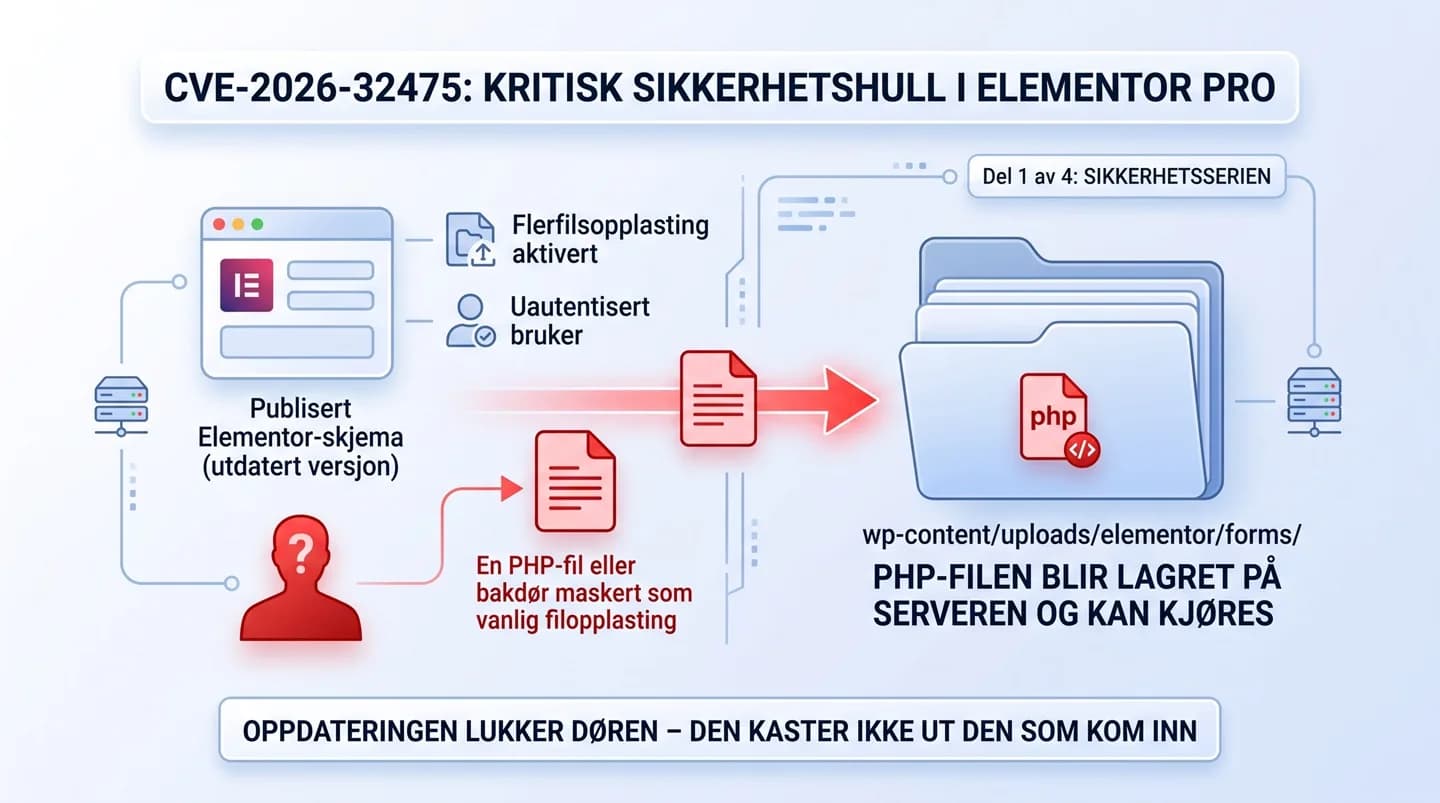
Elementor Pro in all versions before 4.2.2 had a critical vulnerability (CVE-2026-32475) that could let an attacker upload a PHP file and run code on the server – without being logged in. You're only exposed if the website has a published Elementor form with an upload field and the option for uploading multiple files is turned on. Elementor states that this option is off by default, and no exploitation has been observed in practice so far. The first step is to update to Elementor Pro 4.2.2 or newer. But the update doesn't remove files that may have been uploaded while the hole was open – so the folder wp-content/uploads/elementor/forms/ should also be checked manually.
1. What actually happened
On August 20, 2026, a critical vulnerability was made public in Elementor Pro – the paid version of the most widely used page builder for WordPress. The security company Patchstack was notified of the flaw by the researcher Tin Pham in mid-July, Elementor made a fix the next day, and the update was released in August.
The flaw is in the module that handles file uploads in Elementor’s forms. In short: the code that checks uploaded files and the code that moves them into place disagreed on how to handle an empty file entry. An attacker could exploit that disagreement by sending an upload where the first part was empty and the second contained a PHP file. The check stopped after the empty part, while the move took the rest along – and the PHP file ended up in a public folder on the server.
| Details | |
|---|---|
| Vulnerability | CVE-2026-32475 – unauthenticated file upload that can lead to remote code execution (RCE) |
| Affected software | Elementor Pro, all versions before 4.2.2 |
| Fixed in | Elementor Pro 4.2.2 |
| Precondition | Published Elementor form with an upload field AND multiple file upload enabled (off by default) |
| Where the file ended up | wp-content/uploads/elementor/forms/ |
| Observed exploitation | No cases reported in practice when the issue was covered |
| Made public | August 20, 2026 |
LET’S BE CLEAR ABOUT THE SEVERITY
This is NOT a case of “Norwegian websites are being hacked right now.” No observed exploitation had been reported when the vulnerability was covered, and most Elementor sites don’t meet the preconditions at all. But the vulnerability was real, it’s publicly known, and Patchstack has previously reported that vulnerable WordPress websites are exploited within hours of a weakness being made public. So: stay calm, but don’t wait until next week.
2. Are you affected? Three questions
You have to answer yes to all three to have been exposed:
Exposed if
- The website uses Elementor Pro in a version older than 4.2.2
- It has a published form made with Elementor’s form module
- The form has a file upload field with multiple file upload turned on
Not affected if
- You only use the free version of Elementor
- You’re already on Elementor Pro 4.2.2 or newer
- You have no Elementor forms with file upload
- Your forms are made in a tool other than Elementor
Not sure which version you have? Log in to WordPress, go to Plugins, and look for “Elementor Pro” in the list. The version number is right below the name.
3. How to check it yourself – ten minutes
- Take a backup first. Always. If you don’t have a working backup routine, that in itself is the most important finding in this article.
- Update Elementor Pro to 4.2.2 or newer. Plugins → Updates. If you have a test environment, run the update there first.
- Go through your forms. Do any of them have an upload field? Do they need one at all? An upload field you don’t use is a door you don’t need to have.
- Look in the upload folder. Via FTP or your web host’s file manager: open wp-content/uploads/elementor/forms/. If there are .php files there, or files you don’t recognize, don’t delete them in a panic – contact someone who can investigate it properly.
- Check the user list. Users → All Users. Do you recognize every single administrator? If there are accounts from previous vendors or employees who have left, remove them.
- Look at the site the way Google sees it. Search site:yourdomain.no in Google. If pages show up that you didn’t create, it’s a classic sign that someone has used your site for spam.
NOT SURE WHAT YOU ARE LOOKING AT?
Felt unsure when you got to the uploads folder? That’s completely normal – telling a legitimate file from a backdoor requires knowing what to look for. We’ll review your website and let you know if we find anything.
4. Why updating alone isn’t enough
This is the most important point in the whole story, and it’s also the one most people skip. Patchstack is clear about it: updating the plugin doesn’t remove files that were already uploaded while the hole was open. The update closes the door – it doesn’t throw out anyone who may already have come in.
That’s exactly why “we’ve updated everything” isn’t a sufficient answer after a vulnerability has been made public. A proper review looks at three more things: what’s in the upload folders, whether there are users or scheduled tasks that shouldn’t be there, and whether the files in the WordPress installation actually match the originals.
FROM PRACTICE (ANONYMIZED)
A pattern we see again and again when we take over a website after a breach: a plugin nobody had updated in over a year, and an administrator user that no longer belonged to anyone in the company. The attack itself is rarely advanced – it’s the cleanup afterwards that takes time, because nobody can say for sure what was done while the door was open. That’s also why we always start with a technical review instead of jumping straight to updates.
5. How attackers usually get in
This case is a textbook example of the most common way in, but there are more. In short, there are four:
- Outdated plugins and themes. By far the most common. The vulnerability becomes publicly known, and automated bots scan the web for sites that haven’t updated yet.
- Weak or reused passwords without two-factor authentication. If your password has leaked from a completely different service, it gets tried against your login too.
- Compromised links in the supply chain. A third party you trust is attacked itself, and malicious code comes along with an update you installed correctly.
- Forgotten accounts and files. Old administrators, unused plugins, test installations in a subfolder. Anything nobody keeps an eye on is an opening.
We go through each of these in more depth – and what an attacker actually does once he’s in – in How Norwegian websites get hacked.
More interested in the underlying technical mistakes
6. And if something has actually happened?
Then there’s one question you need to address early, and that many Norwegian businesses don’t think of in the moment: is personal data involved?
Website forms often collect names, email addresses, phone numbers and sometimes attachments with far more sensitive content. If you become aware of a personal data breach, the Norwegian Personal Data Act and Article 33 of the GDPR impose a reporting obligation: the breach must be reported to Datatilsynet (the Norwegian Data Protection Authority) without undue delay, and where possible within 72 hours. If the breach is unlikely to result in a risk to the people concerned, the reporting obligation doesn’t apply – but that assessment should be made deliberately and written down, not skipped.
DON’T DO THIS
Don’t delete everything and restore an old backup as your first move. You’ll lose the traces that tell you what actually happened and when – and if the backdoor was already there when the copy was taken, you just bring it back. Take a copy of the site as it is now BEFORE you change anything, even if it’s infected.
7. What you should do this week
- Today: update Elementor Pro and everything else that’s waiting. Check the upload folder and the user list.
- This week: turn on two-factor authentication for all administrators, and remove plugins and themes you don’t use. Every unused add-on is maintenance you pay for in risk.
- This month: test that the backup can actually be restored. A backup nobody has tried to restore is an assumption – not a safeguard.
- Ongoing: make sure someone is responsible for keeping watch. That’s the whole point of a maintenance agreement – not that someone keeps an eye on things in an abstract sense, but that updates actually get done.
Frequently asked questions
Is my website hacked because I use Elementor?
No. The vulnerability applied to Elementor Pro in versions before 4.2.2, and only where the website had a published form with a file upload field where multiple file upload was turned on. Elementor states that this option is off by default, and no observed exploitation had been reported when the issue was covered. If you use the free version, or don't have any such forms, you're not affected by this issue – but you should update anyway.
Which version of Elementor Pro is safe?
4.2.2 and newer. You'll find the version number under Plugins in the WordPress dashboard. Elementor recommends that everyone update to the latest version, including those who don't meet the preconditions for the vulnerability.
I've updated. Am I safe now?
The hole is closed, but the update doesn't remove any files that were uploaded while the vulnerability was open. If you met the preconditions, the folder wp-content/uploads/elementor/forms/ should be reviewed for PHP files or other files that don't belong, and the user list checked for accounts you don't recognize.
How can I tell if my website has been hacked?
Typical signs: administrator users you don't recognize, unknown pages showing up in Google when you search site:yourdomain.no, visitors being redirected to other websites, a suddenly slow site, warnings in Google Search Console, or email from your site landing in recipients' spam. One sign on its own doesn't necessarily mean a breach – but several at once should be investigated.
Do I have to notify Datatilsynet if my website is hacked?
If the breach involves a personal data breach – for example, form data with names, email or attachments may have gone astray – it must be reported to Datatilsynet (the Norwegian Data Protection Authority) without undue delay, and where possible within 72 hours of becoming aware of the breach. If the breach is unlikely to result in a risk to the people affected, the reporting obligation doesn't apply, but the assessment should be documented. If you're in doubt, contact Datatilsynet or a legal adviser – we're a digital agency, not lawyers.
Is a security plugin enough?
A security plugin is useful, but it's not the same as maintenance. It can alert you to changes and block known attack patterns – it doesn't update your plugins, it doesn't judge whether a file in the upload folder belongs, and it doesn't decide whether an old administrator user should be removed. Most of the breaches we see come down to something an update would have stopped.
Can you check my website?
Yes. We go through versions, upload folders, users and setup, and give you honest feedback on what we find and what should be done – even if the answer is that everything looks fine.
We review your website for free and tell you what we'd change — in a three-minute video.
Writes about websites, security and visibility for Techspace. Questions about this article? Email us at post@techspace.no.